The Quick Answer
Native cloud apps (Google Drive, Dropbox, OneDrive) do not have built-in folder locks for your local hard drive. To lock a cloud folder locally, you must either encrypt your entire hard drive using BitLocker/FileVault, manually zip and password-protect individual files, or use a dedicated third-party application like Cloud Secure to place a master password over the specific synced directory while keeping sync active.
Why Native Cloud Apps Leave Your Files Vulnerable
The convenience of background syncing creates a significant local security loophole.
When you install Google Drive, Dropbox, or OneDrive on your computer, they create a local sync folder. The convenience is unmatched: drop a file in the folder, and it instantly syncs to the cloud.
If you step away from your desk, share a laptop with a family member, or hand your computer to a technician, anyone who clicks on that folder has instant, unhindered access to your sensitive documents. Cloud providers secure your data in transit and on their servers, but they leave the local endpoint entirely open.
This guide explores the exact methods available for cloud folder encryption on your local machine, allowing you to maintain the convenience of background syncing while enforcing a strict local security boundary.
Methods: Protecting Cloud Storage Locally
1. Full Disk Encryption
Built-in OS ToolBoth Windows (BitLocker) and macOS (FileVault) offer full disk encryption. When enabled, your entire hard drive is encrypted. However, this only protects your files when the computer is turned off or fully locked.
- Device theft protection
- Corporate IT compliance
- Zero-cost baseline security
- Fails if PC is unlocked/logged in.
- Cannot lock a specific folder.
2. Manual Encrypted Archives
Free Manual ProcessYou can use file archivers like 7-Zip to place sensitive files into a password-protected `.zip` file, and then place that archive inside your cloud sync folder.
- Sending single secure files
- Deep, long-term storage
- Tedious unpack/repack cycle.
- Completely breaks background syncing.
3. Local Directory Gating
Directory gating software sits between your OS and your cloud sync folder. It locks the actual folder path on your local drive. If someone tries to open "C:\Users\Name\Dropbox", the OS denies access unless the software is unlocked with a master password.
Crucially, elite directory locking software allows the background sync engines to continue running, uploading, and downloading data silently, while rendering the folder invisible or inaccessible to human users navigating the file explorer.
- Shared family or work computers
- Maintaining active cloud syncing
- Ease of daily use
- Requires installing 3rd-party software.
- Premium tools require a purchase.
Methods Comparison
| Method | Difficulty | Active Sync | Cost |
|---|---|---|---|
| OS Full Disk (BitLocker) | Easy | Yes | Free |
| Manual Archive (7-Zip) | Medium | No (Manual) | Free |
| Encrypted Vaults (VeraCrypt) | Hard | No (Breaks sync) | Free |
| Directory Gating (Cloud Secure) | Very Easy | Yes (Background) | Paid / Free App |
Platform Specifics
How to Lock a Google Drive Folder
Google Drive is ubiquitous, but "Google Drive password lock" is a frequently searched term because Google simply doesn't offer it locally. To lock a Google Drive folder specifically, you need an application that targets the `G:` drive (if using Drive for Desktop streaming) or the local sync folder.
If you use streaming, third-party software must intercept access at the virtual drive level. If you use mirroring, it locks the standard Windows folder.
Read full guide on Google Drive security →How to Lock a Dropbox Folder
Dropbox is renowned for its rapid block-level sync. Consequently, encrypting a Dropbox folder with heavy cryptography often causes a "sync loop" where Dropbox constantly thinks the file is changing. To protect a Dropbox folder without destroying CPU performance, local gating (restricting UI access rather than encrypting every bit) is highly recommended for everyday privacy.
Read full guide on Dropbox folder locking →How to Lock a OneDrive Folder
Windows 10 and 11 heavily integrate OneDrive. Microsoft offers "Personal Vault" inside OneDrive, which requires 2FA to open. However, Personal Vault has strict size limits on free accounts and can be clunky for daily workflows. For users who want to lock their entire OneDrive root folder with a simple password, third-party software remains the most efficient route.
Troubleshooting
Cloud sync not working after locking folder
If you used a basic folder hider, it likely blocked the SYSTEM user. Ensure you are using specialized cloud locking software that allows backend processes (like `googledrivesync.exe`) to run while the UI is locked.
Forgot password for locked folder
If using native OS encryption, you need your recovery key (often saved to your Microsoft or Apple account). If using premium software like Cloud Secure, use the built-in Credential Recovery process configured during setup.
OneDrive lock with password bypassing security
Check if you left the folder open in a background terminal or if your software locker requires a system reboot after a major Windows update to re-hook into the File Explorer.
Tools & Reviews
We tested several tools to find the best option for local cloud encryption. We focused on finding the best tool for local access prevention without breaking daily sync workflows.
Cloud Secure
Editor's ChoiceVendor: NewSoftwares.net | Platforms: Windows, Android, iOS
What is Cloud Secure?
Cloud Secure is a dedicated privacy application designed to password-protect your local cloud directories, including Dropbox, Google Drive, Microsoft OneDrive, and Box. While these services offer robust online login security, they leave your local synced folders completely exposed on your desktop. Cloud Secure mitigates this risk by locking these directories, ensuring that prying eyes cannot access, leak, or compromise your important files, pictures, and backup documents. The software is built for everyday users, featuring a simple interface that secures your accounts in seconds.
Why Cloud Secure?
Relying solely on cloud providers like Google and Microsoft keeps your data safe on their servers, but it provides zero local security on your personal computer. If you share a PC or leave it unlocked, your confidential files are vulnerable. Cloud Secure adds an indispensable layer of endpoint security that standard apps miss. With a single click, you can password-protect all your cloud drives and eliminate the worry of local unauthorized access.
How It Keeps Your Data Safe
- Prevents unauthorized users from viewing your cloud files and folders on your desktop PC.
- Blocks modifications and deletion of personal files within your synced cloud account.
- Allows you to unify and control all your cloud accounts under one secure platform.
- Facilitates setting up, organizing, and password-protecting both personal and business files with a single password.
- Stops hackers and malicious insiders from stealing sensitive data directly from your local machine.
Key Features
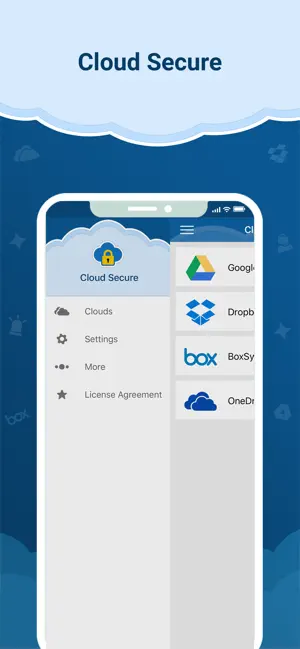
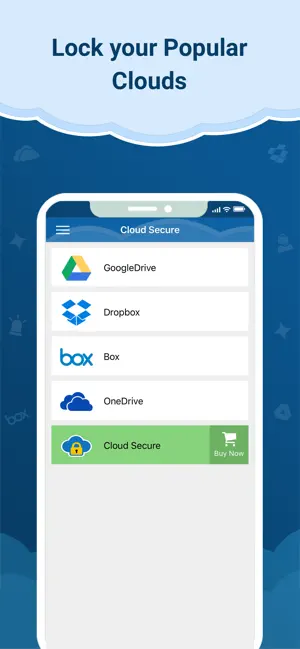
- Fully compatible with Dropbox, Google Drive, Microsoft OneDrive, and Box.
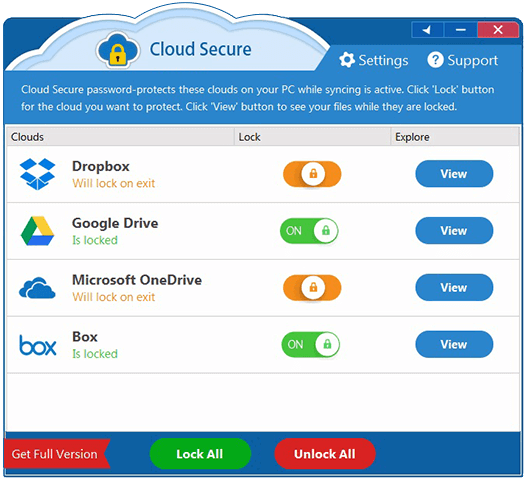
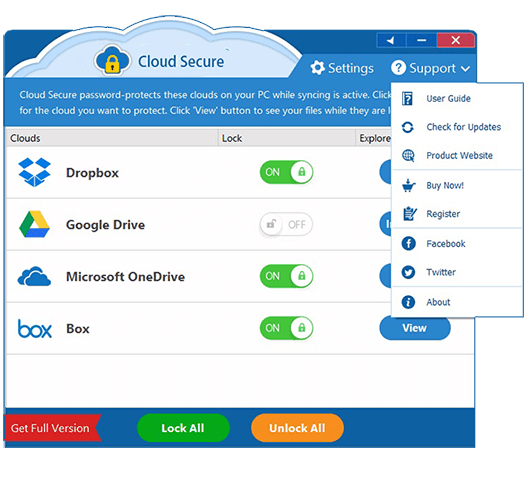
- Lock or unlock individual cloud accounts in just one click.
- Global lock button to secure all your cloud folders instantly.
- Automatically detects installed cloud accounts for rapid setup.
- Highly secure, password-protected interface.
System Requirements
Supported Platforms: Windows 11, Windows 10, Windows 8, Windows 7, Windows Server 2008, 2012, 2016, and 2019 (includes 32-bit and 64-bit variants).
Supported File Systems: Fully compatible with FAT32, exFAT, and NTFS.
Platform Interfaces
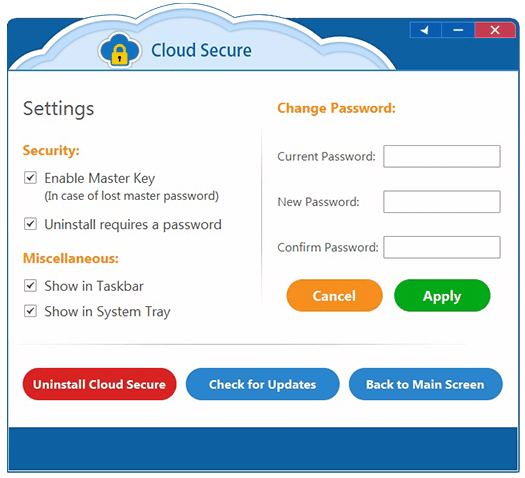
Windows PC
Android


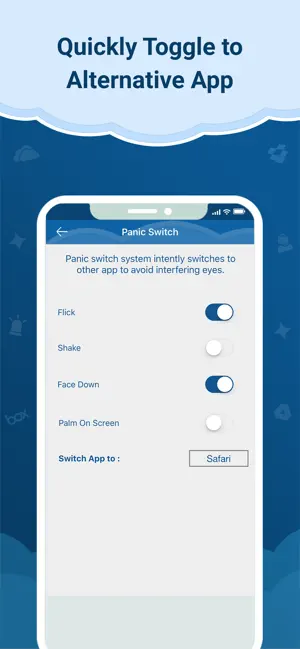
iOS (iPhone / iPad)

Download Cloud Secure
Cryptomator
Excellent open-source tool designed to encrypt files before they upload to the cloud. Best if you don't trust server storage. However, requires working out of a virtual vault rather than your native folder.
VeraCrypt
Powerful tool for creating heavily encrypted file containers. Highly secure, but modifying a file inside the container forces your cloud client to re-upload the entire container, poor for sync use.
Step-by-Step Tutorial: Cloud Secure
If you decide to use our recommended tool, the setup is straightforward. Follow these steps:
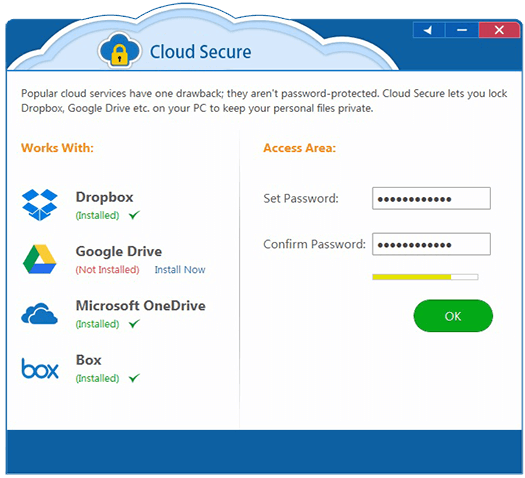
Set a Master Password
Upon first launch, you will be prompted to create a secure master password. This is the only key that will unlock your directories locally.
Select Your Cloud Drives
The software automatically detects installed cloud clients (Google Drive, Dropbox, OneDrive, Box). Select the ones you wish to protect.
Engage the Lock
Click the lock icon. Your folders will immediately become inaccessible through Windows Explorer. Background syncing will continue silently.
Unlock When Needed
Open the app, enter your password, and click unlock to regain local viewing access to your files.
Tool Pricing Overview
We appreciate transparent pricing. Cloud Secure avoids the modern trend of endless subscriptions on desktop, offering a traditional software license.
Mobile Apps
- Android Free (Ads)
- iOS Base App Free
- Premium Unlock (iOS) $1.99
Desktop (Windows PC)
- License Type One-time purchase
- Price $34.95
- No recurring subscription
Which Option is Right?
Home Users & Families
If you share a PC and just want to keep your tax returns and photos private.
Recommended: Cloud SecureRemote & Hybrid Workers
If you sync corporate data to a laptop that travels with you.
Recommended: Folder ProtectArchivists / Deep Storage
If you are storing old files in the cloud that you rarely need to access.
Recommended: Folder LockPrivacy Extremists
If you don't trust the cloud provider's servers at all.
Recommended: Folder Lock 10Related Security Tools
Developed by NewSoftwares.net, the team behind Cloud Secure.
Your Questions Answered
Is there a native Dropbox password protect folder feature?
No. Dropbox allows you to password-protect shared links online, but it does not offer a feature to password-protect the actual Dropbox folder residing on your local hard drive.
What is the best email encryption software?
While this guide focuses on cloud storage security, if you are looking to secure file transmissions via email, enterprise email encryption tools like Virtru or ProtonMail are industry standards.
How to protect cloud storage on an iPhone?
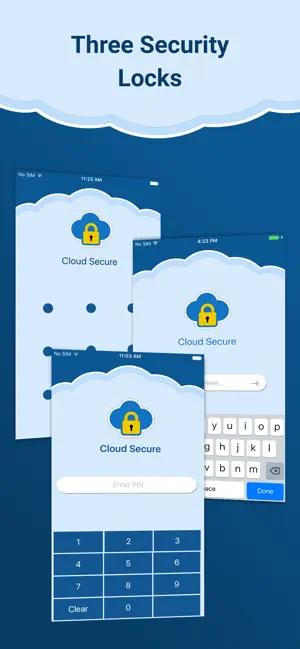
iCloud folder security relies entirely on your device passcode. To add an extra layer, use the Cloud Secure iOS app to place a PIN or pattern lock specifically over your cloud storage access on the device.
Can I lock sync folders without admin rights?
Generally, no. Installing software that hooks into the file system to block directory access requires administrator privileges on Windows. However, you can use portable file archivers like 7-Zip without admin rights.
More Guide References
How to Password Protect Google Drive Folder
A deep dive into securing Google's local sync client.
Dropbox Folder Lock Methods
Stop unauthorized access to your local Dropbox cache.
Our Verdict
Leaving synced cloud folders unprotected on your local machine negates the security provided by cloud servers. If your device is unlocked, your data is exposed.
While you can rely on full-disk encryption like BitLocker for device theft, it fails to protect against casual access while the machine is running. Because it perfectly balances local security with uninterrupted background syncing, Cloud Secure is the best option for most users.